Versioning
Developer, Professional and Enterprise Versioning with GitHub is accessible to organizations with a Fused Developer, Professional & Enterprise subscription (see Plans).
Versioning in Fused is built on top of Canvas Checkpoints. A checkpoint captures the state of your Canvas at a point in time — versioning lets you push that state to GitHub so your team can reuse and collaborate on it.
You'll need to connect your GitHub repo first.
Versioning a Canvas
Pushing changes
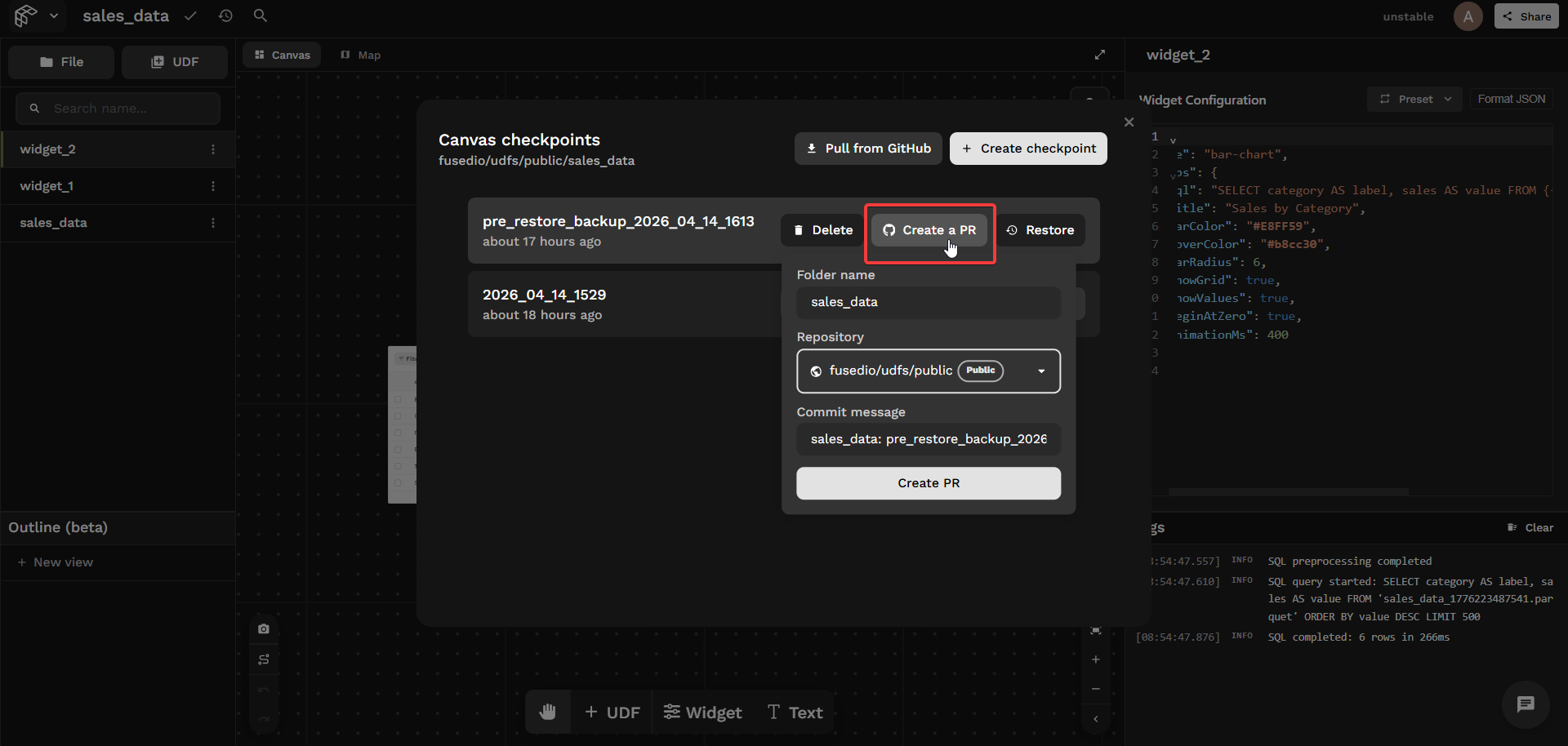
Push your Canvas state to GitHub by creating a PR from a checkpoint.
- Create a checkpoint of your Canvas
- Click Create a PR on the checkpoint
- (Optional) Add a commit message or change the target repository
- Click Open PR
- Merge the PR on GitHub
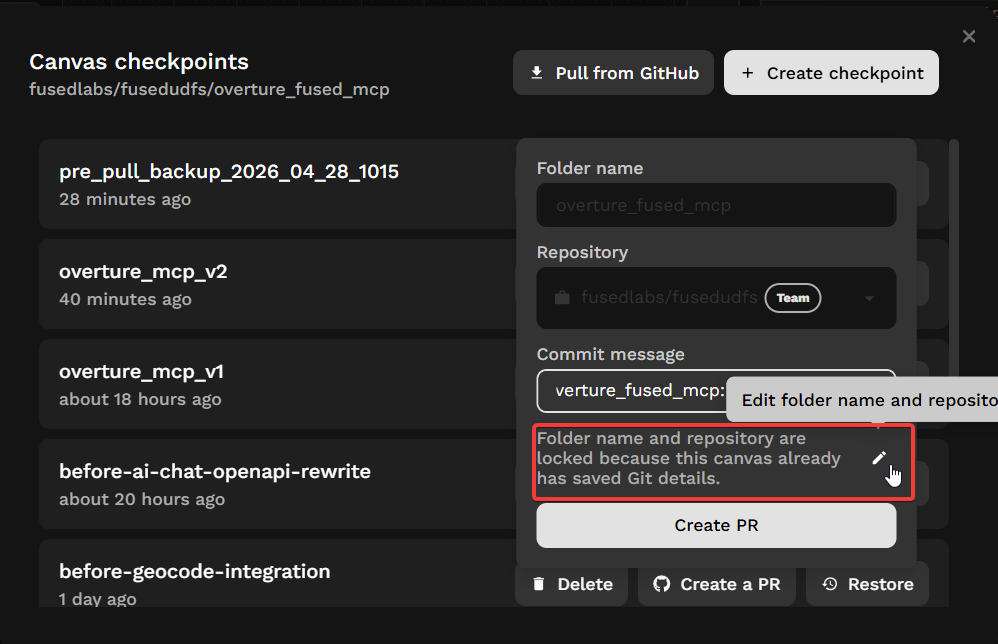
If the folder name and repository are locked (because the canvas already has saved Git details), click the pencil icon to unlock them. This lets you push the UDF to a different repository — for example, to a public repo instead of your team's private one.
Once merged, everyone on your team can pull the Canvas from the connected repository.
Pulling changes
There are two cases when you'll want to pull changes into your Canvas.
Changes on GitHub
When there are newer commits on GitHub than your canvas sync time, Workbench shows an Upstream changes badge at the top of the canvas. Click it to open the GitHub sync dialog.
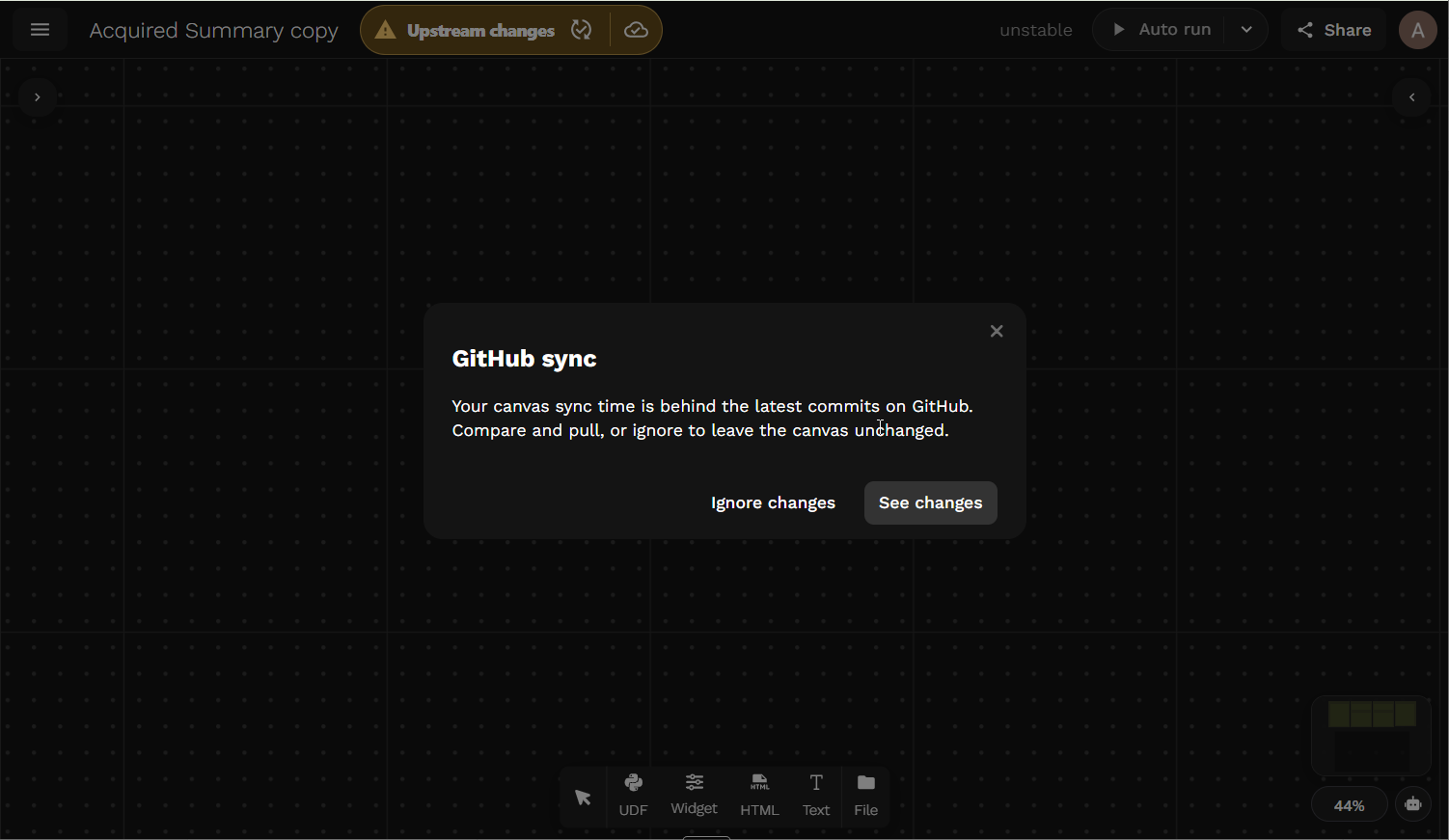
Click See changes to review what changed and selectively pull, or Ignore changes to leave your canvas unchanged.
Changes on the server
When an AI coding tool (like Claude Code) edits UDFs server-side, those changes don't automatically appear in your open Canvas. Workbench will prompt you to review and pull them.
The Pull server changes panel lists all UDFs in the Canvas with their status. UDFs marked Modified have server-side changes ready to review.
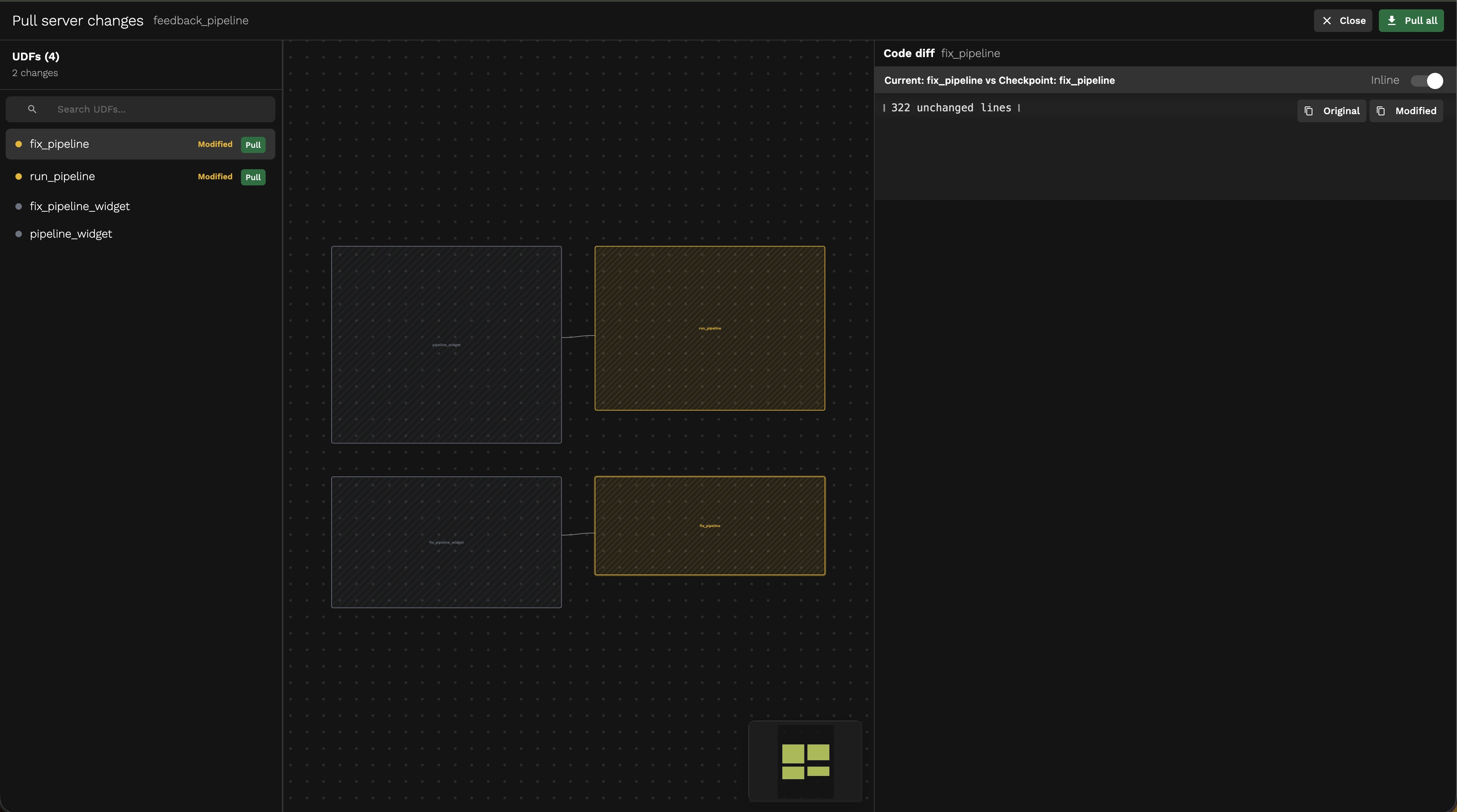
- Click a UDF to see the Code diff between your current version and the server version
- Click Pull on individual UDFs to apply only the changes you want
- Click Pull all to apply all changes at once
Versioning a UDF
You can also commit individual UDFs to GitHub directly from the Canvas.
Committing a UDF
- Click Versions in the three-dot menu
- (Optional) Add a commit message or change the target repository
- Select the UDF to commit
- Click Open PR
- Merge the PR on GitHub
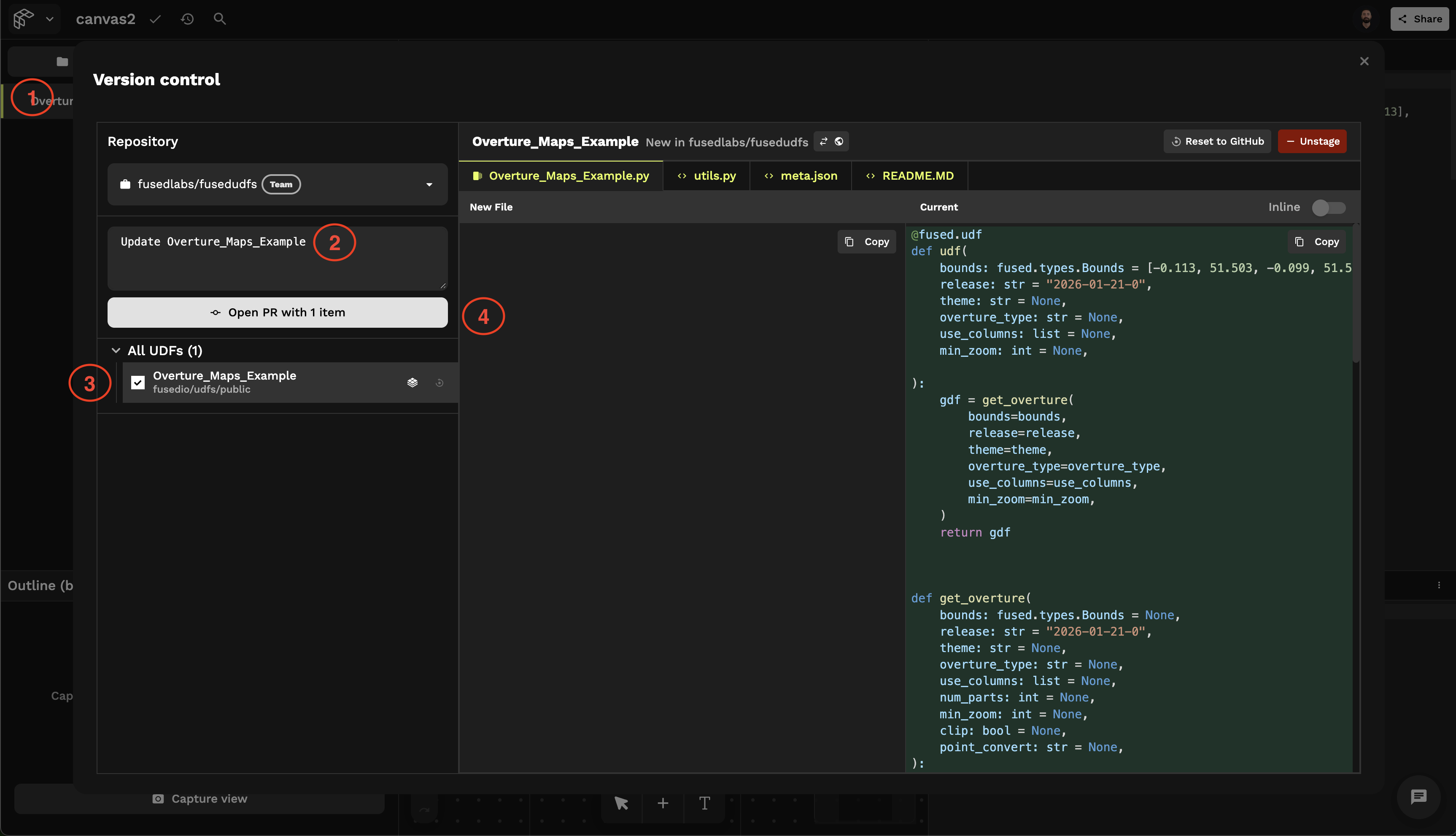
UDFs merged to GitHub are available in your Team UDFs in the UDF Explorer.